Getting an account on EODH
This guide walks you through the steps to register as a user to the platform using your chosen identity provider (i.e. GitHub, Google, or Microsoft). This tells the EODH who you are, and associates your user identity on the Hub with an existing email address.
Access permissions
Before we discuss how to log in, it is sensible to understand that once signed in to the platform, you can:
- Be added to an EODH workspace managed by another EODH user (this would provide the same access as users with a billing account)
You will not yet have permissions to:
- Create or manage a workspace
To further understand what access level this account type provides, go to:
Sign in
To initially register as a user of the EODH, click on the 'Sign in' button on the homepage. This can be found in the top right corner.

This will bring you to a sign in page.
Prerequisite
To create an account on the Hub you must have either a GitHub, Gmail or Microsoft account If you don't already have one of the above, first create a GitHub, Gmail, or Microsoft account
Click on one of the available identity providers on the sign in page.
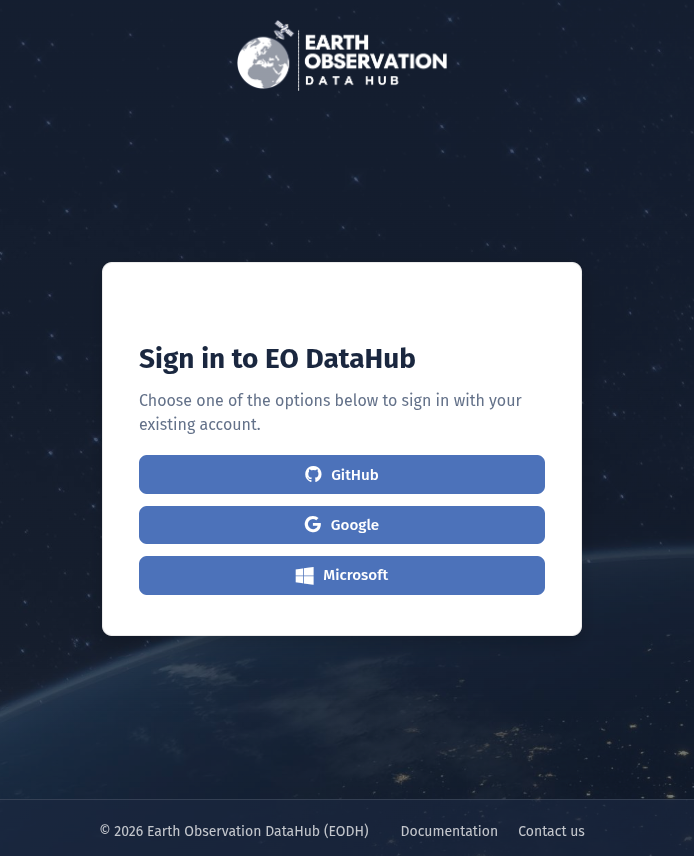
This will prompt you to input your chosen identity provider's user credentials. Logging in for the first time will also prompt you to update account information, as shown below.
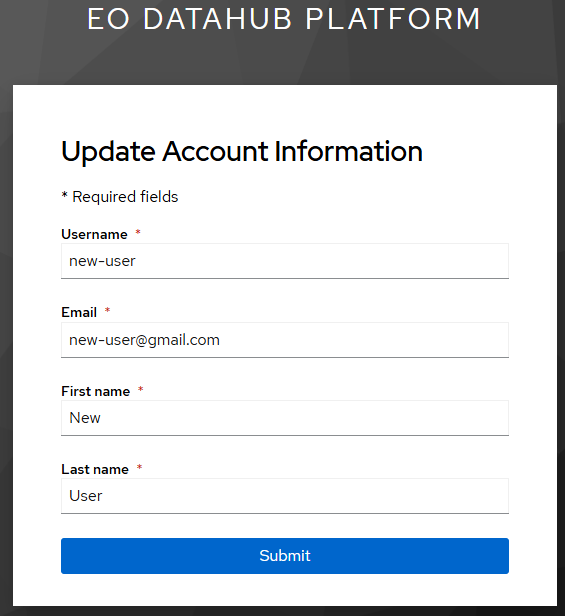
Input the required fields to complete registration.
If the email address entered is already associated with an existing account, the following pop up will appear.
Sign in via GitHub
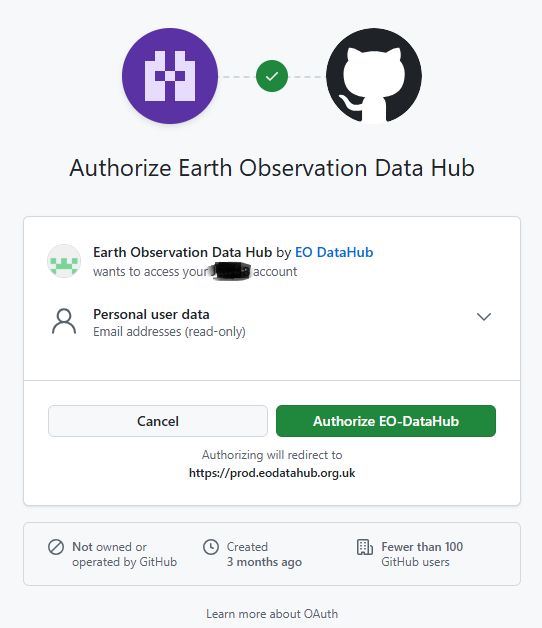
Authorisation step
When logging into the Hub for the first time via GitHub, you will be asked to authorise EO-DataHub using GitHub keycloak, so the account can be used to login.
Sign in via Google
Confirmation step
When logging into the Hub for the first time via Google, you will be presented with a Google confirmation screen. This screen asks you to review and approve the identity information that eodatahub.org.uk will access from your Google account.
Review the permissions displayed and, if you are happy with this, select Continue to authorise sign in with Google.
Sign in via Microsoft
Once you have selected the Microsoft sign in button, this will trigger an email to be sent to the address linked to your Microsoft account. The subject of the email will be:
✉️ "Request for access to eodh-prod received"
Note
- 🔒 The requested application will appear as:
eodh-prod - ⌛ The request is valid for 24 hours from the time it is sent, after which the request will expire
- ⚠️ If this happens, you will receive an email with the subject "eodh-prod access request has expired"
After your Microsoft sign-in request is sent, approval is required at the organisation level.
Next steps
- 📨 Your sign-in sends a request to your Microsoft Administrator, usually handled by your organisation’s IT team
- ✅ They must approve access to the
eodh-prodapplication as a one-time action - 👥 Once approved, access is enabled for your entire organisation. Anyone in your organisation can sign in via Microsoft in a one-click step.
You may need to contact your Microsoft Administrator directly, and explain what eodh-prod is and why you require access. If you’re unsure who your Microsoft Administrator is, contact your IT support team.
Pre-approving Microsoft access for your team or organisation
To make sign-in faster and smoother, your Microsoft Administrator can pre-approve access before users attempt to log in. This allows instant access on first sign-in. To do this, identify your organisation’s Microsoft Administrator and send them the guidance below:
External tenant administrators can pre-approve access by visiting:
Replace{TENANT-ID} with your organisation’s Microsoft Entra tenant ID.
See the Microsoft reference documentation here: https://learn.microsoft.com/en-us/entra/identity-platform/v2-admin-consent