EODH Plugin for ArcGIS Pro
The EODH plugin brings the Earth Observation DataHub into ArcGIS Pro, letting you search, preview, and load satellite imagery directly into your map. It also supports purchasing commercial imagery from Airbus and Planet.
Introduction
It provides a seamless way for GIS professionals to access and work with Earth observation data without leaving their familiar desktop environment. By integrating directly into ArcGIS Pro (3.3+), the plugin eliminates the need to switch between platforms, streamlining the workflow from data discovery to analysis. Users can explore STAC catalogs and collections in an intuitive interface, making it easier to identify relevant datasets for a given project. Advanced search and filtering options allow datasets to be refined by area of interest, date range, and cloud cover, ensuring that only the most suitable imagery is selected.
The plugin also enhances the data evaluation process through built-in preview capabilities, including thumbnail views and an interactive timeline, which help users quickly assess data quality and temporal coverage. Once suitable datasets are identified, they can be loaded directly into ArcGIS Pro as map layers using COG or GeoTIFF formats, enabling immediate analysis and visualisation. In addition to open data access, the plugin supports the purchase of commercial satellite imagery from providers such as Airbus and Planet, broadening the range of available data. Workspace management features further improve efficiency by allowing users to organise and maintain their selected assets within the ArcGIS Pro environment.
Requirements
- Windows 10/11 (x64)
- ArcGIS Pro 3.6 or later
- An EODH account with an API token
Installation
- Download the latest
eodh.esriAddinXfile from the GitHub Releases page. - Double-click the downloaded file.
- Click Install Add-In when prompted.
- Restart ArcGIS Pro if it was already open.
After installation, a new EODH tab appears in the ArcGIS Pro ribbon.
Getting Started
Signing In
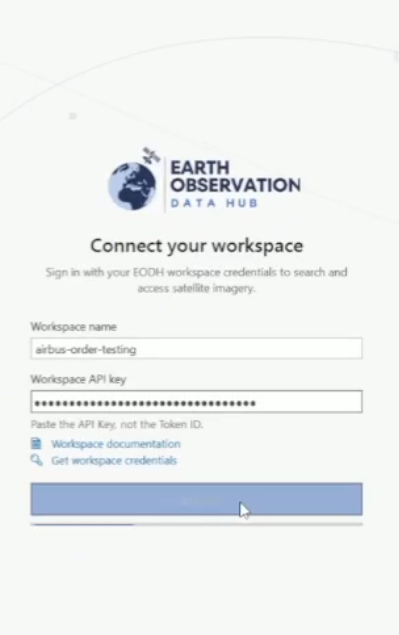
- Click the EODH Search button in the EODH ribbon tab to open the dockpane.
- Select your environment (Production, Staging, or Test). If you're not sure, select Production.
- Enter your workspace name and API token.
- Click Sign In.
Your credentials are encrypted and stored locally, so you won't need to sign in again next time.
Signing Out
Click Sign Out in the header bar at the top of the dockpane.